This article contains information on how to add a content block to your website using the Sitejet Builder editor
Content organisation is a key element of every website. The Sitejet Builder editor allows for easy and intuitive content addition. Basic content most often consists of a block comprising text and an image. Sitejet Builder has several predefined sections of this type, making adding further elements quick and straightforward.
To add a content tile, click the Content icon in the left sidebar. The available layouts will be displayed. Now simply drag the selected element to the desired location on the page.
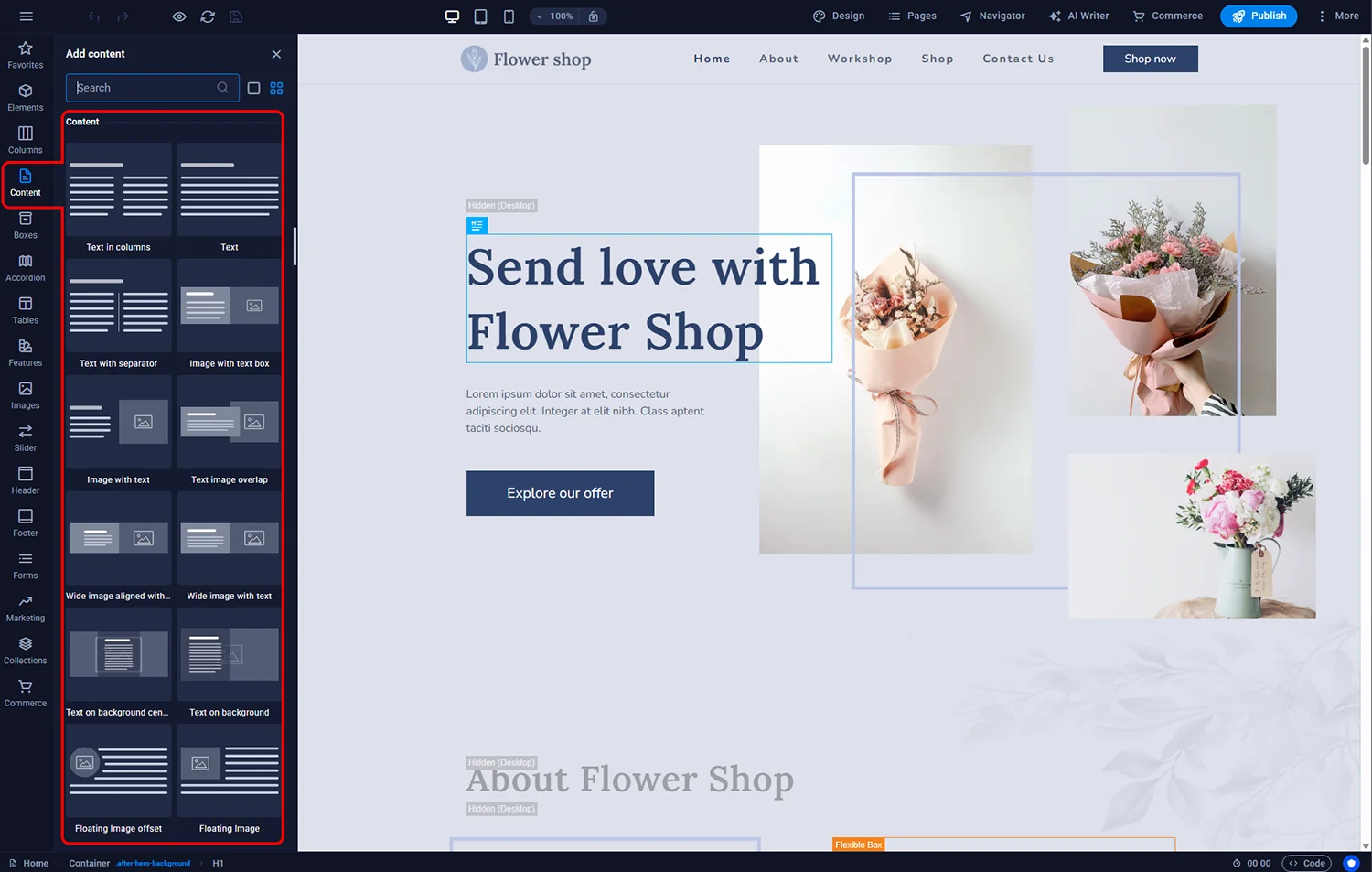
Sitejet Builder - adding a content
After adding a content tile and double-clicking it in the main editor window, a settings panel will open. Depending on the selected layout, you can here change its variant, set the spacing from other blocks, or adjust the width of the columns it consists of.
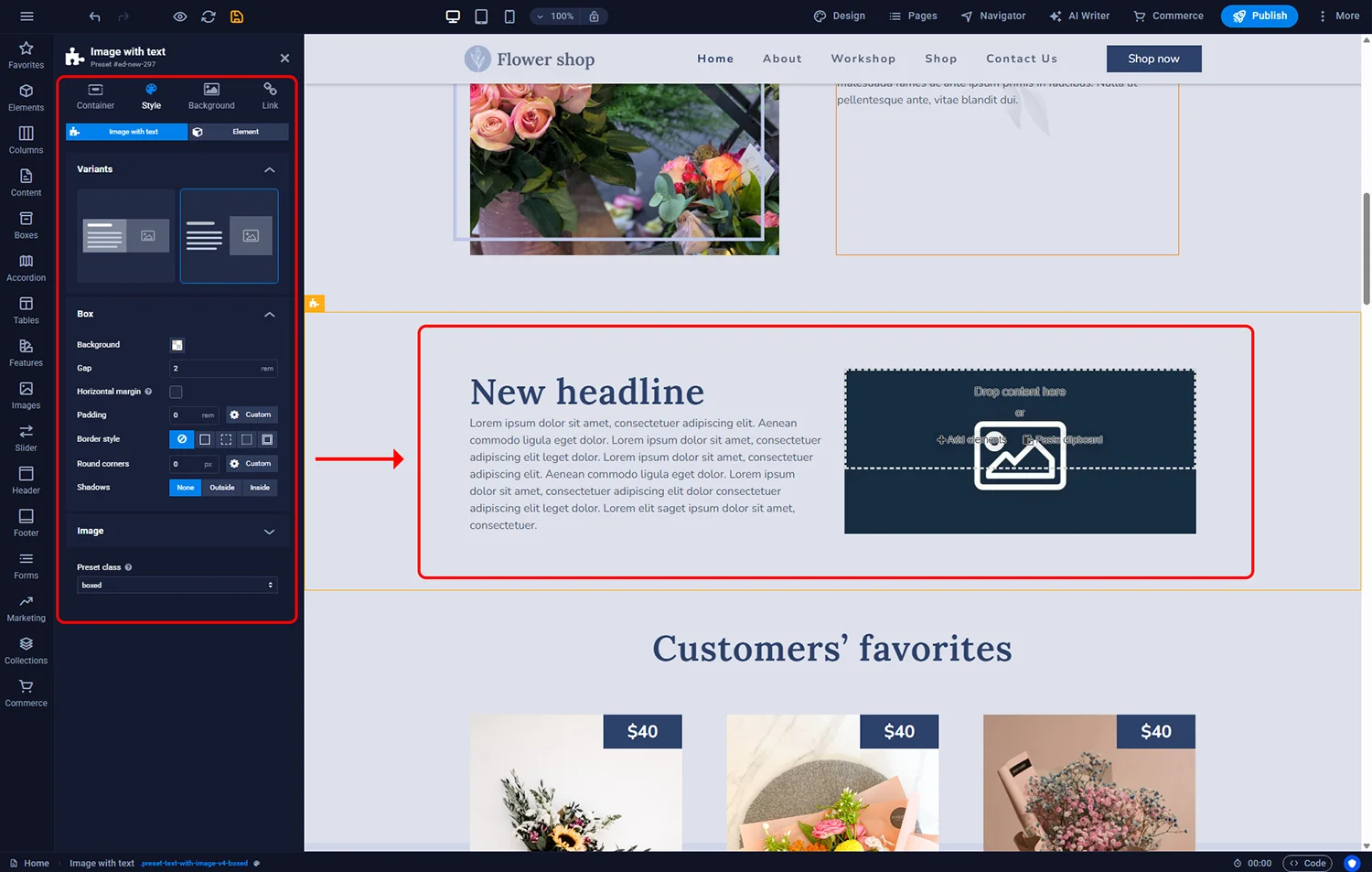
Sitejet Builder - content block settings
Each predefined content tile consists of elements such as text, images, or buttons, which can be further customised. To edit the content or settings of a selected part of the tile, simply double-click on it in the main editor window.

Sitejet Builder - content edit
In addition to entering your own content into the predefined block, Sitejet Builder also allows you to add or change the elements that make up such a tile. For example, to add a button below the text in the left column of the tile, simply click the Elements icon in the left sidebar, select Button, and drag it to the chosen location on the page. The placement location for the button will be indicated by a green line.
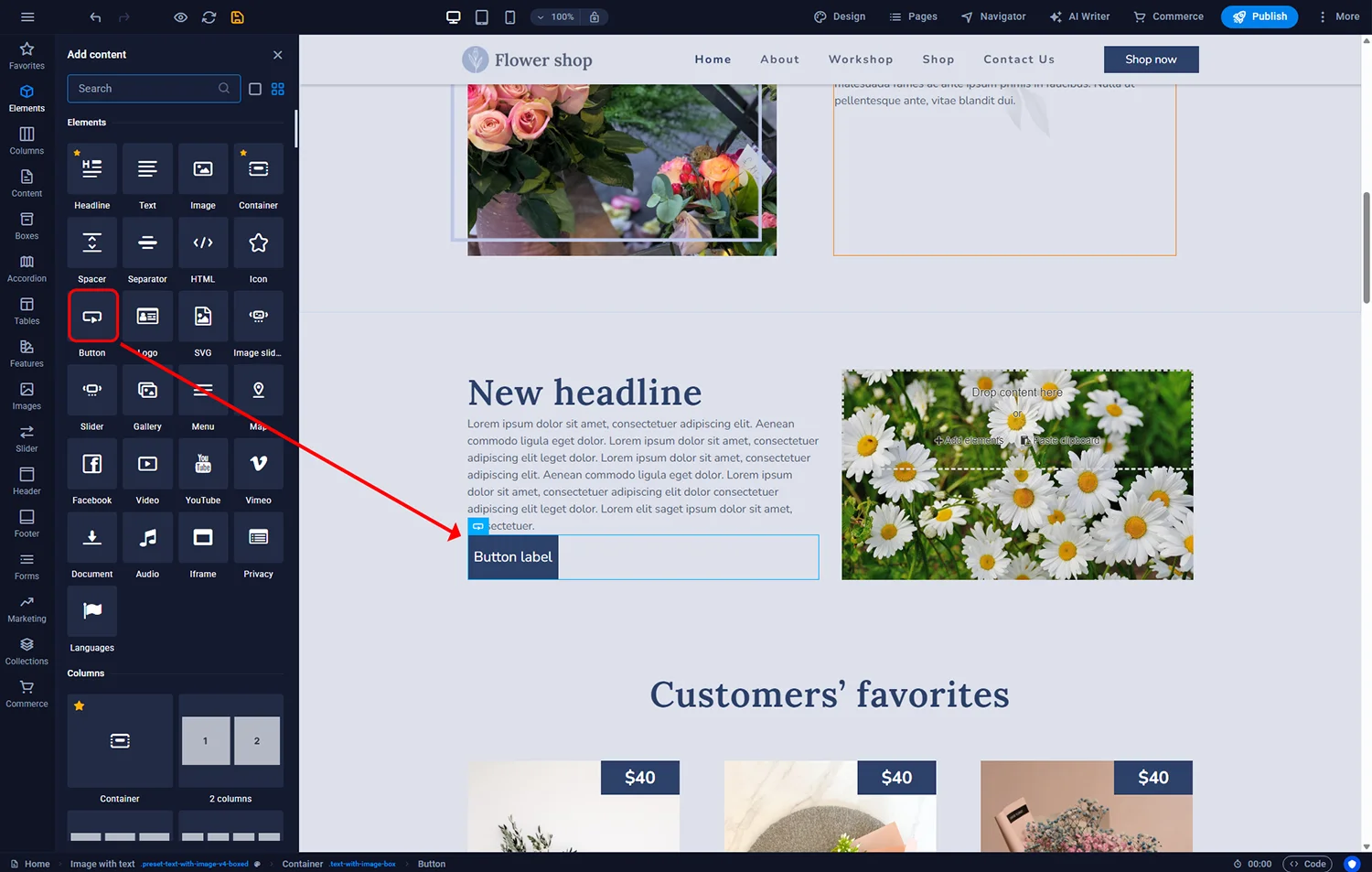
Sitejet Builder - adding a button
Now simply double-click the added button to adjust its parameters such as appearance and link, and to change its content.
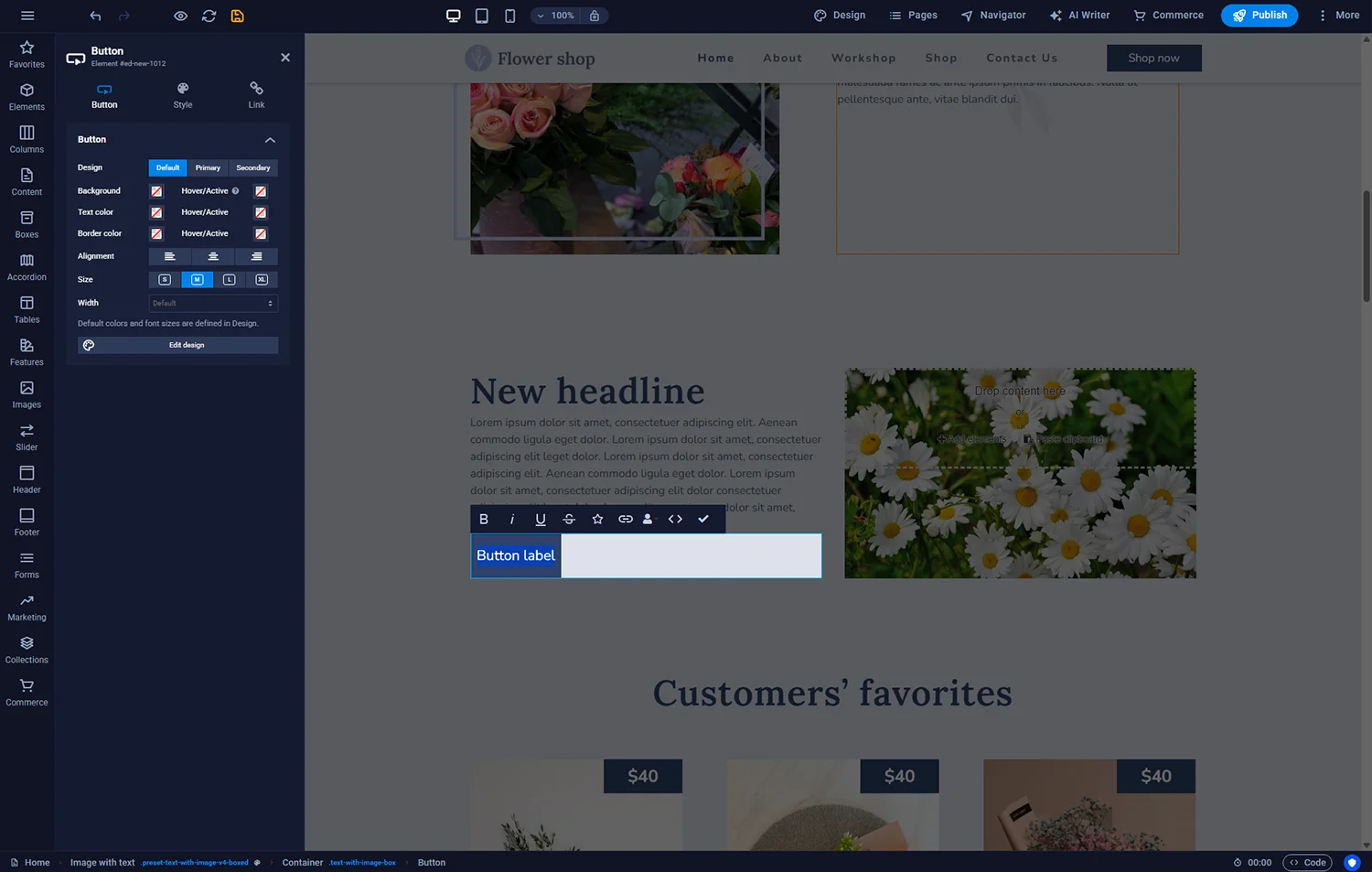
Sitejet Builder - button edit

© 2026 Smartx Technologies LTD. All rights reserved.
