In this article, you will find instructions on how to add a header with a menu to your website using the SiteJet Builder.
If you start building your website by importing one of the ready-made templates, the header and menu will already be included. All you need to do is customise it to fit your website's content.
If you want to add a menu to a new or empty subpage – or use a different menu layout – you can choose one of the ready-made headers available in the Header category on the left sidebar. Select the layout that interests you and drag it into the main editor window.
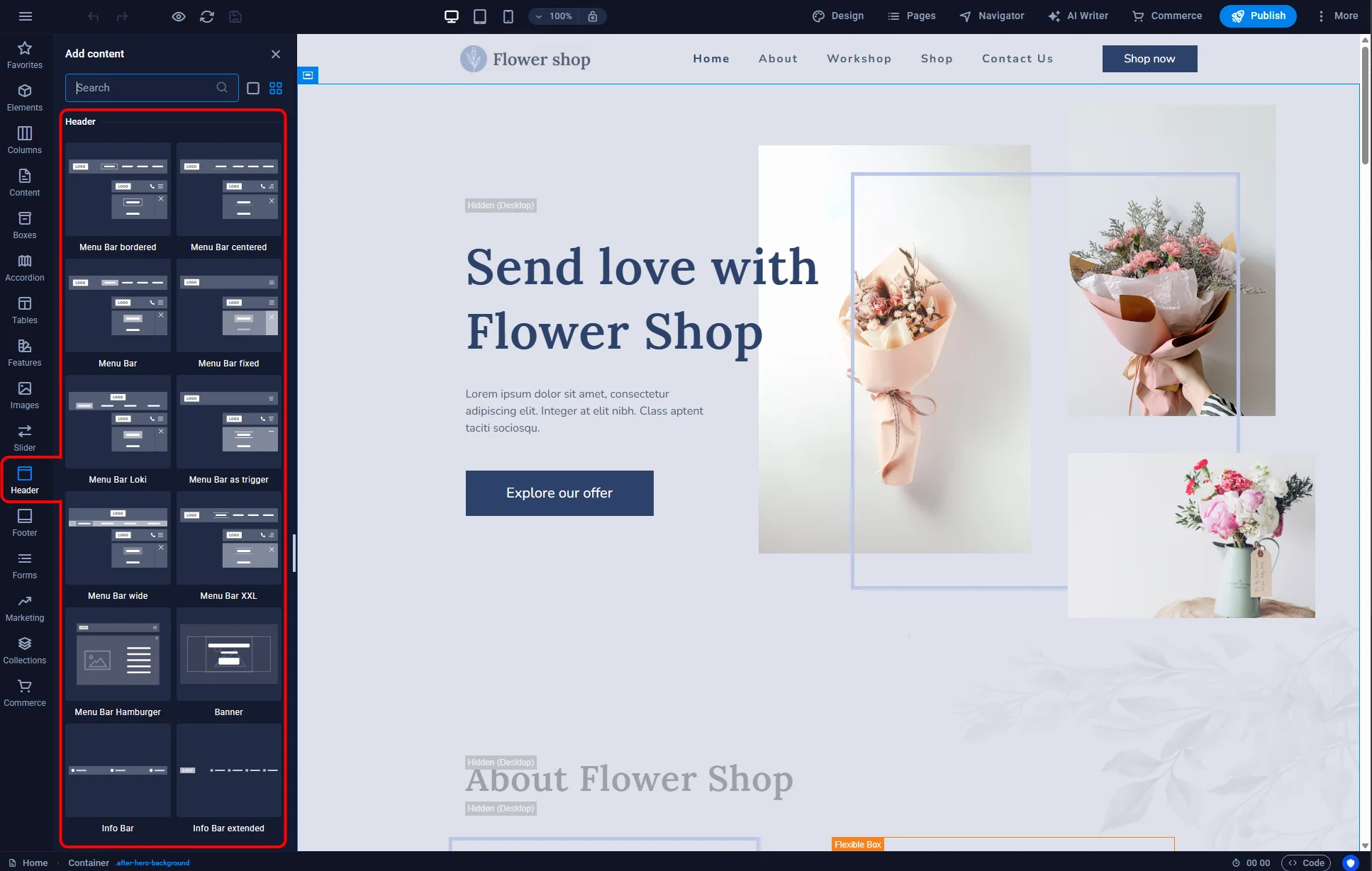
Sitejet Builder - adding header to the website
After adding the header section, you can double-click the menu element to open the settings panel. Here you can decide whether the menu should be created automatically (Auto option) or if you want to configure it yourself – Custom
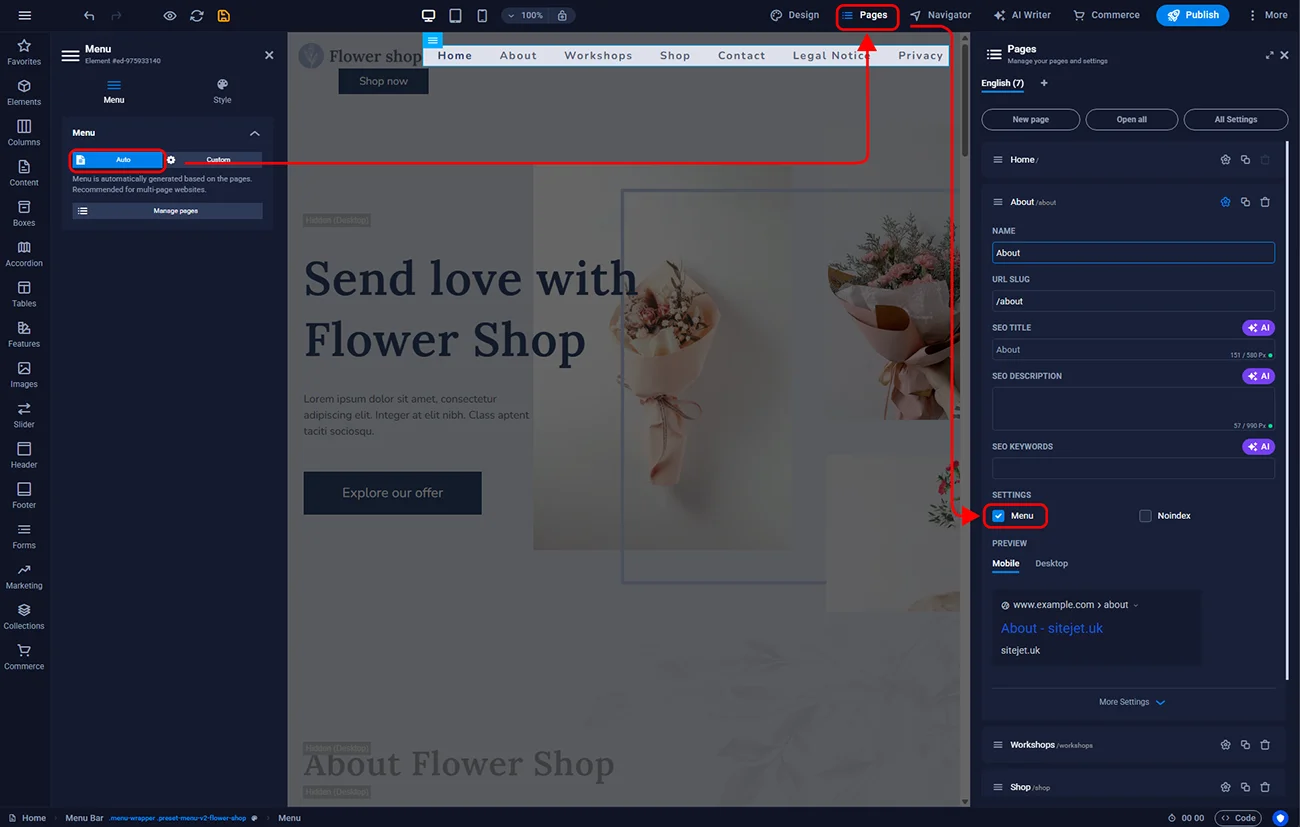
Sitejet Builder - automatic menu creation
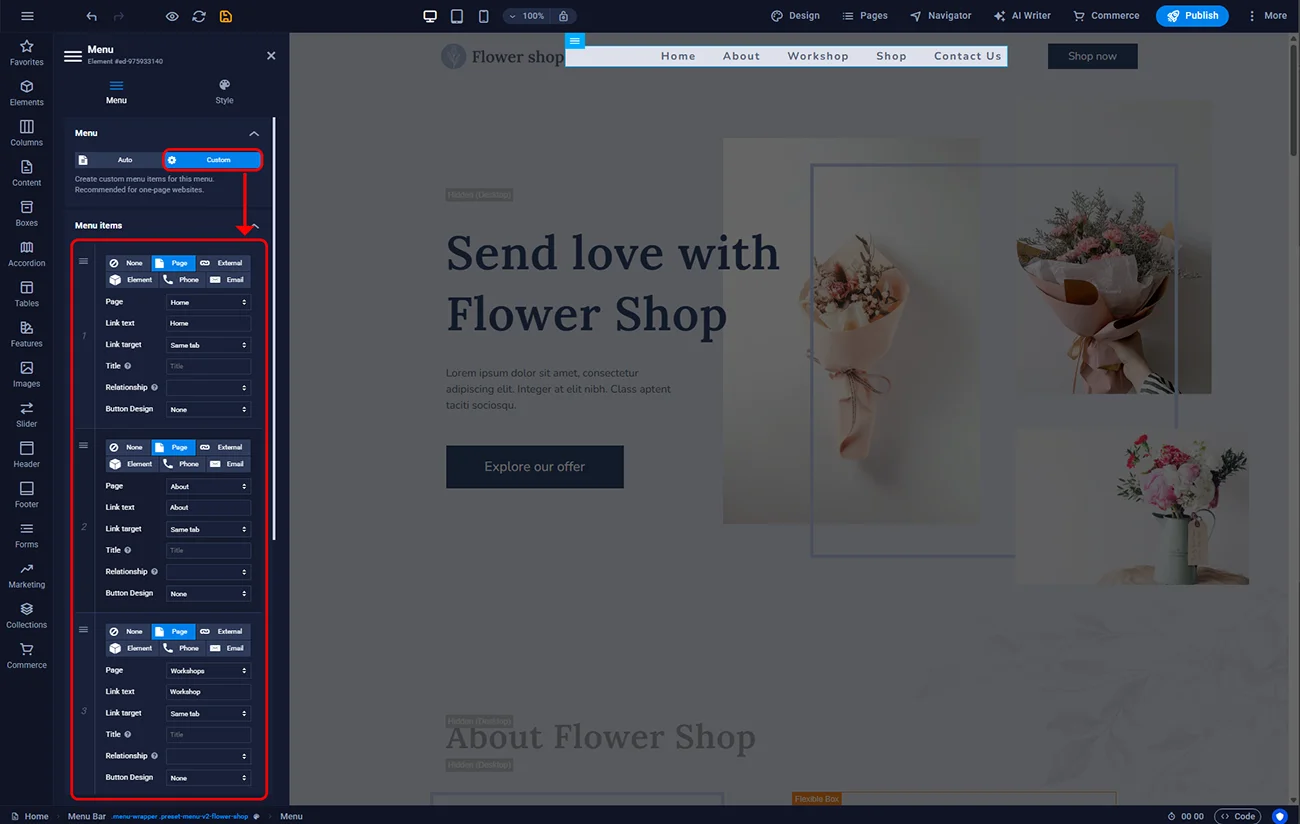
Sitejet Builder - custom menu
To change the appearance of the header and its elements (including dropdown menus, marked as Submenu), double-click the menu element in the main editor window and select the Style icon.
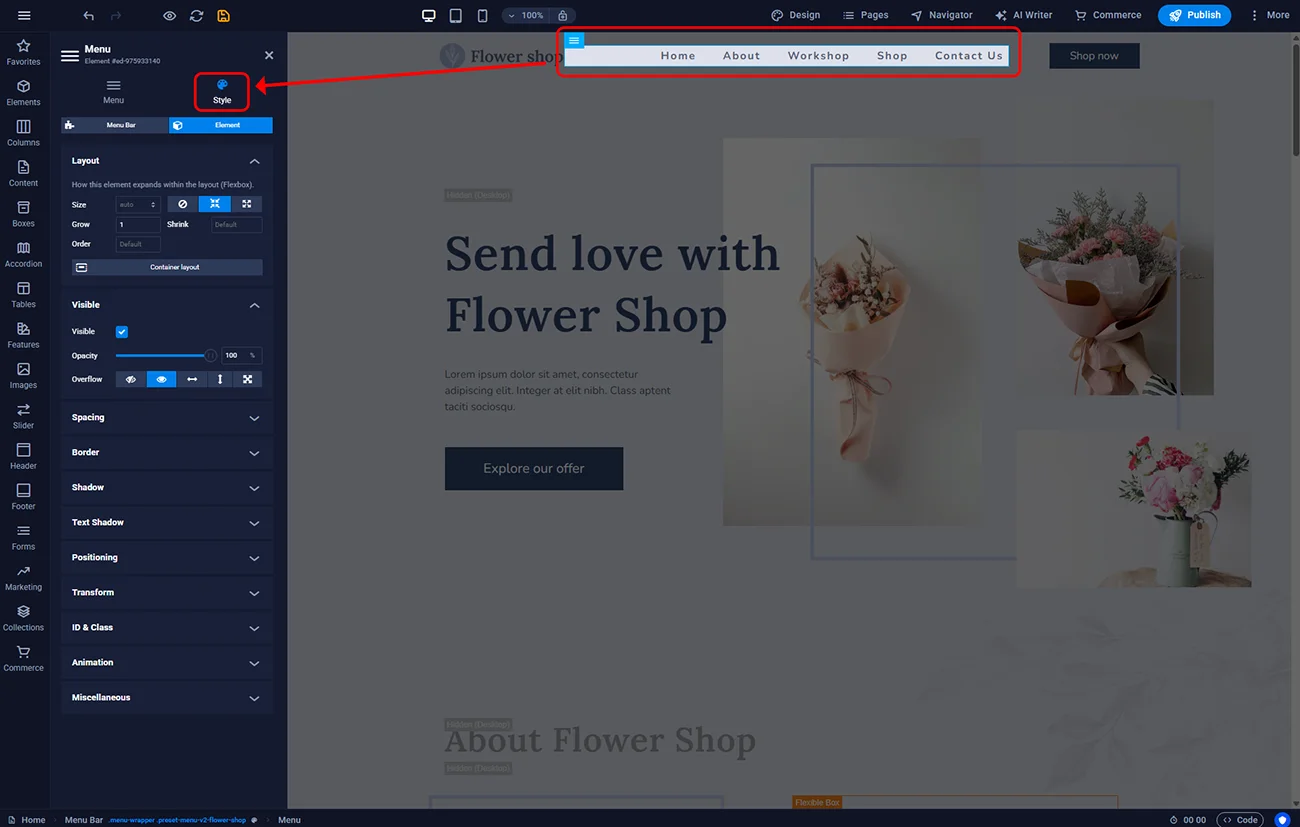
Sitejet Builder - customizing menu appearance

© 2026 Smartx Technologies LTD. All rights reserved.
